使用激活密钥激活许可证
如果您直接从Sharpened Productions购买File Viewer Plus Enterprise,您将获得一个全站点激活密钥。使用此密钥可为组织中的所有用户激活软件。基于密钥的激活支持在线和离线两种方式。有关如何选择激活方式的详细信息,请参阅在线与离线激活。
使用命令行激活
To activate the license from the command line, use the following commands, where "C:\path\to\fvp7.exe" is the post-install path to the main program executable ("C:\Program Files (x86)\File Viewer Plus Enterprise\fvp7.exe" by default) and XXXXX-XXXXX-XXXXX-XXXXX-XXXXX is your activation key.
在线激活
"C:\path\to\fvp7.exe" /activate XXXXX-XXXXX-XXXXX-XXXXX-XXXXX
离线激活
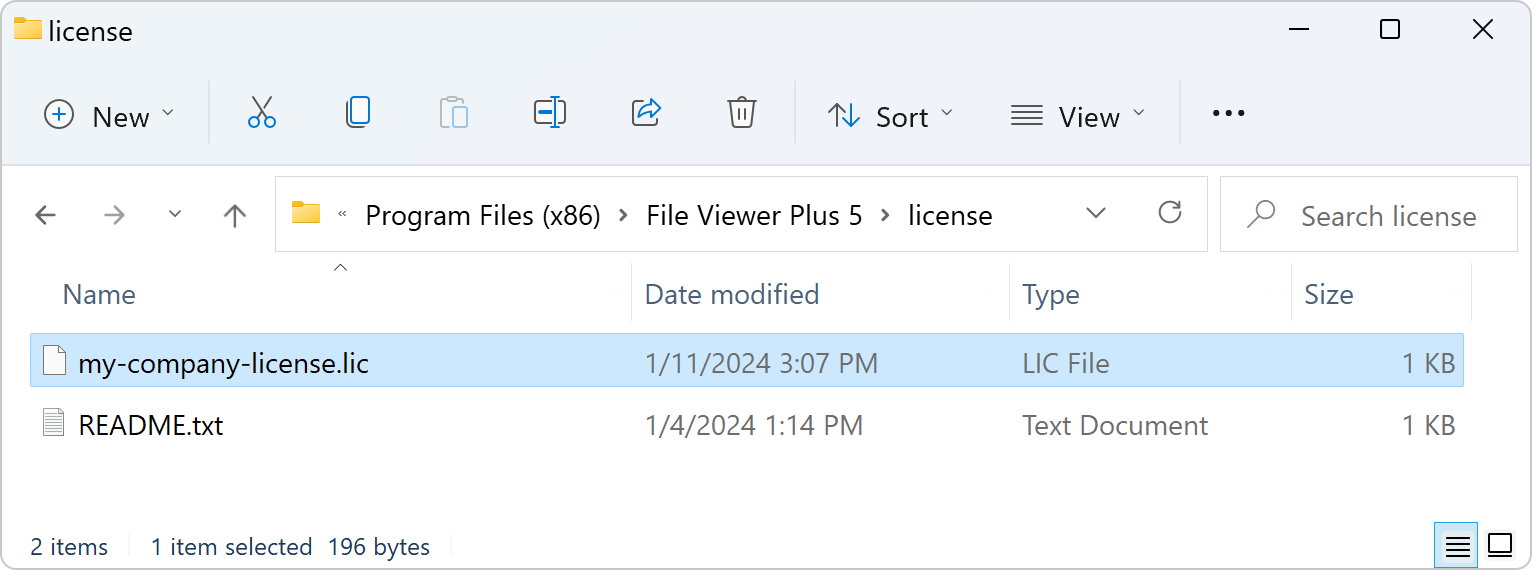
进行离线激活前,您必须将离线许可证(.lic)文件放置在安装目录的license\目录中。有关更多信息,请参阅离线许可证激活。
"C:\path\to\fvp7.exe" /activate-offline XXXXX-XXXXX-XXXXX-XXXXX-XXXXX
When activation is complete, a node-locked license file is created at "%PUBLIC%\File Viewer Plus\fvp7.lic", which typically resolves to C:\Users\Public\File Viewer Plus\fvp7.lic.
使用许可证窗口激活
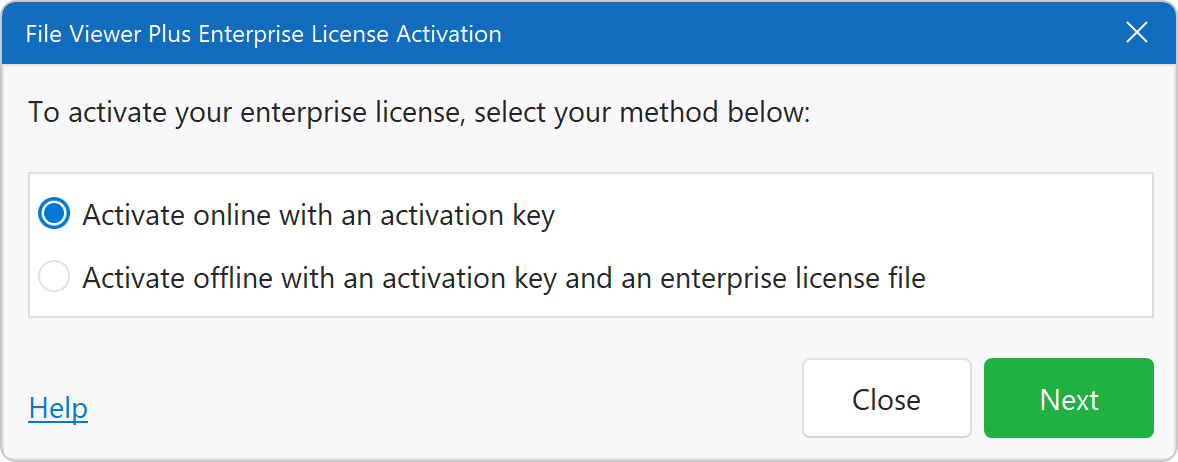
如果系统上没有可用许可证,软件将在启动时显示许可证窗口。选择在线或离线激活许可证。
在线激活
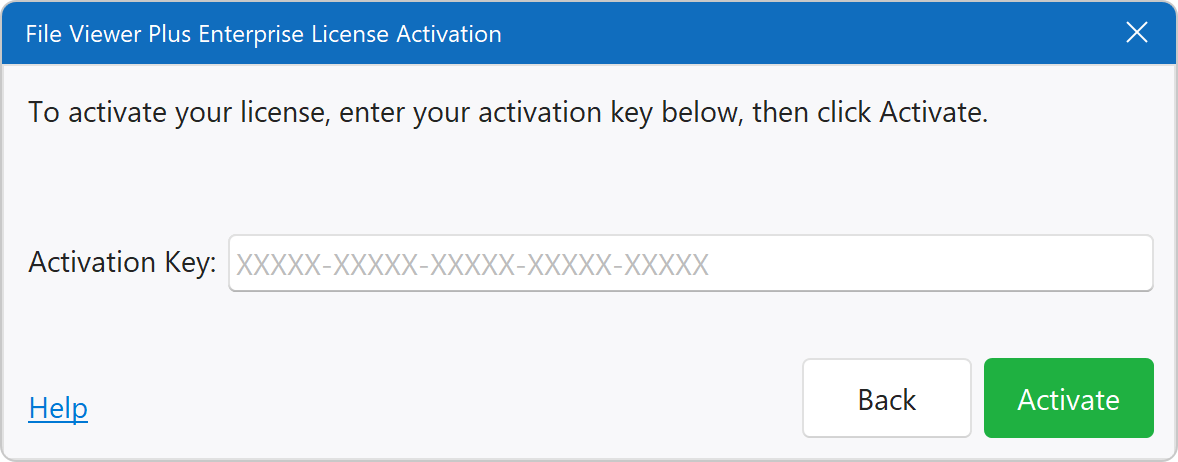
要进行在线激活,请输入激活密钥,然后点击激活:
离线激活
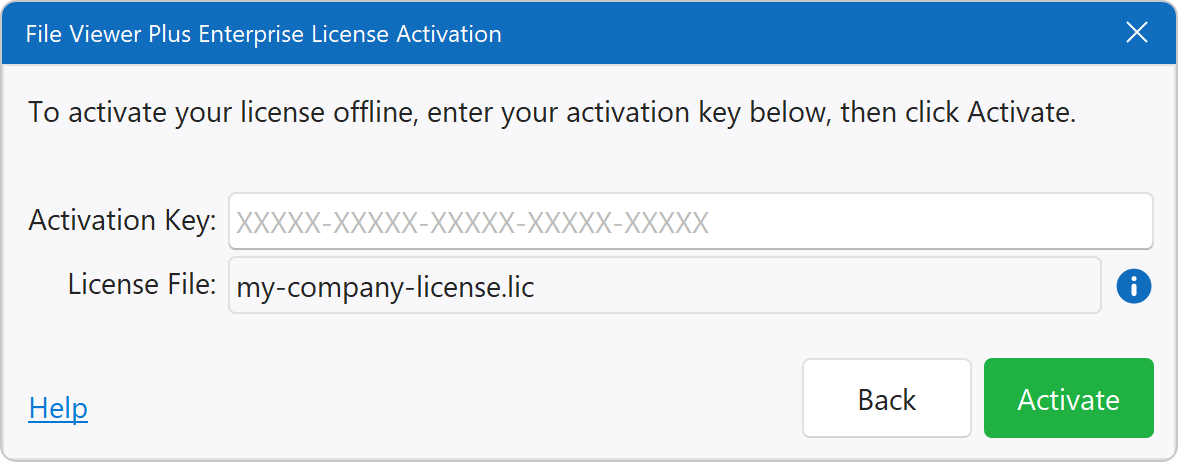
要进行离线激活,请确保离线许可证(.lic)文件位于软件安装目录的license\目录中(请参阅离线许可证激活)。软件会自动找到许可证文件并在窗口中显示。接下来,输入激活密钥,然后点击激活:
在线与离线激活
基于密钥的许可证可以在线或离线激活。购买时,您可以指定希望使用哪种方式。
在线激活
软件连接到在线Internet激活服务器,以激活和续订许可证。此类激活要求您的系统允许通过网络访问https://lic.fileviewerplus.com的443端口。订阅续订后,软件会通过Internet自动刷新许可证,使许可证在下一订阅期内保持有效。
离线激活
软件无需Internet连接即可激活许可证,但需要同时具备激活密钥和Enterprise许可证文件。如果您选择此激活方式,购买后我们会向您提供Enterprise许可证(.lic)文件,您必须将其放置在软件安装目录的license\目录中。每次订阅续订时,您都会收到一个新的许可证文件,并且必须将其分发到所有计算机。