使用 Microsoft Marketplace 激活许可证
如果您通过Microsoft Marketplace购买 File Viewer Plus Enterprise,您的许可证将通过 Microsoft 365 管理中心进行管理。无需激活密钥——每位用户使用其 Microsoft 帐户登录即可激活。若要使用密钥激活,请参阅激活密钥页面。
步骤1:在 Microsoft 365 管理中心分配许可证
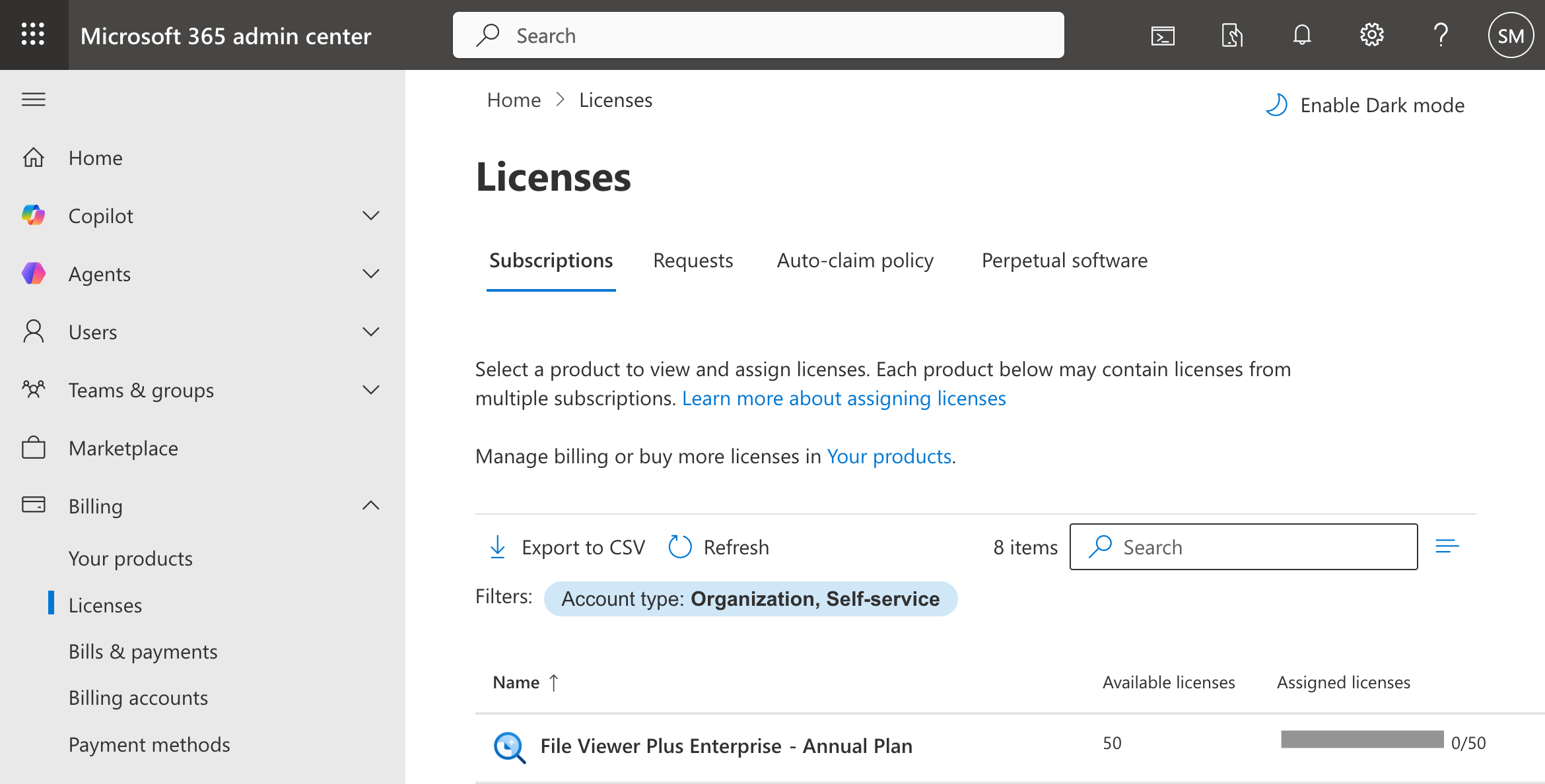
用户激活软件前,管理员必须通过Microsoft 365 管理中心为每位用户分配许可证。转到计费 > 许可证,选择 File Viewer Plus Enterprise,然后为相应用户分配许可证。
步骤2:激活许可证
通过 File Viewer Plus Enterprise 软件激活许可证有两种方式:通过命令行静默激活,或通过许可证窗口交互式激活。
使用命令行激活
If the user's device is Entra ID joined or the user is signed in to Windows with a work or school account, the license can be activated silently from the command line. (This method is primarily useful for administrators). "C:\path\to\fvp7.exe" is the path to the main program executable ("C:\Program Files (x86)\File Viewer Plus Enterprise\fvp7.exe" by default):
"C:\path\to\fvp7.exe" /activate-microsoft-marketplace
有关返回代码,请参阅Microsoft Marketplace 脚本。
使用许可证窗口激活
如果软件启动时系统中没有许可证,则会显示许可证窗口。点击使用 Microsoft Marketplace 登录,然后使用用户的 Microsoft 工作或学校帐户登录。如果用户的设备已加入 Entra ID,或者用户已使用工作或学校帐户登录 Windows,软件将自动激活许可证。
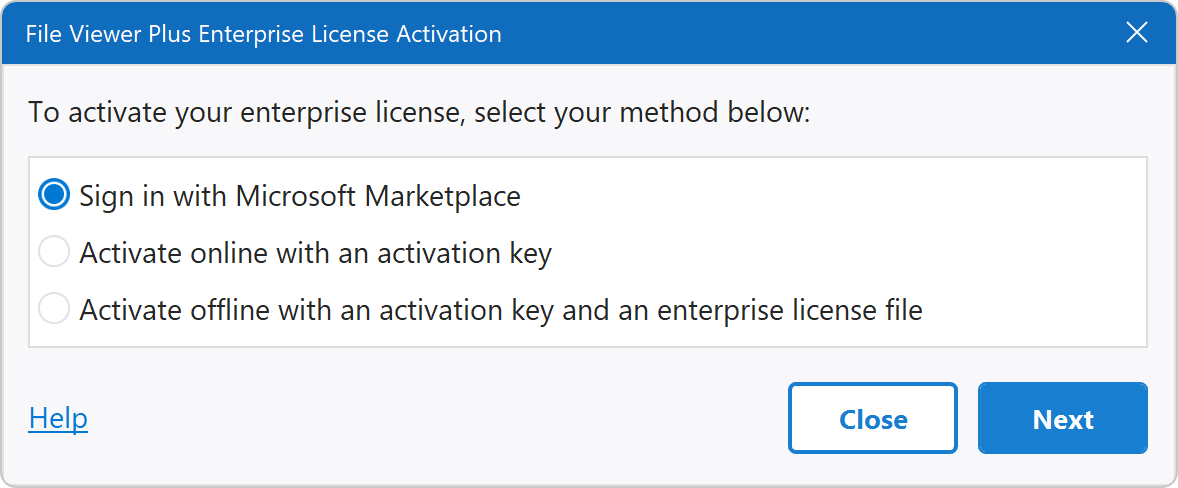
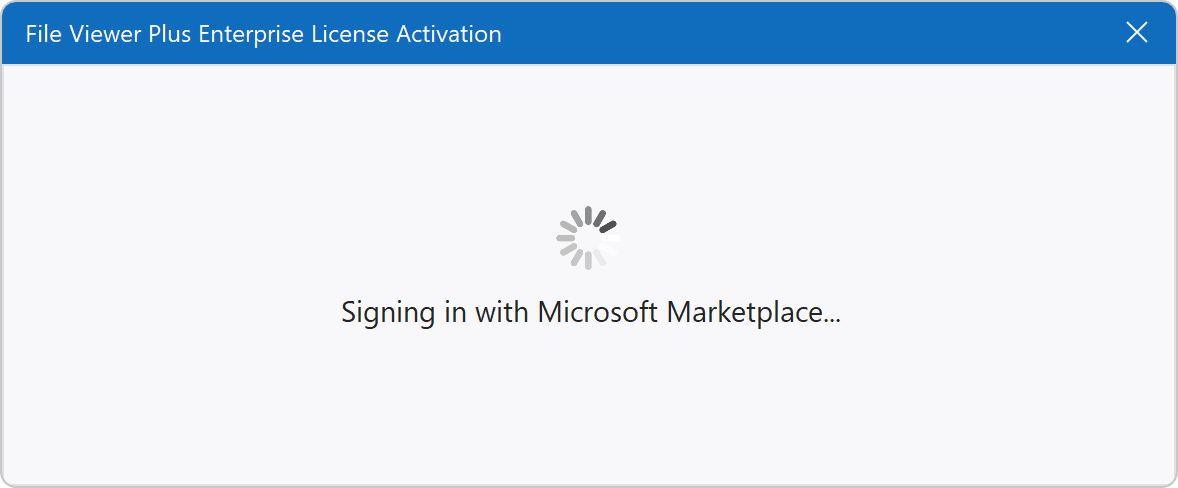
软件开始登录过程:
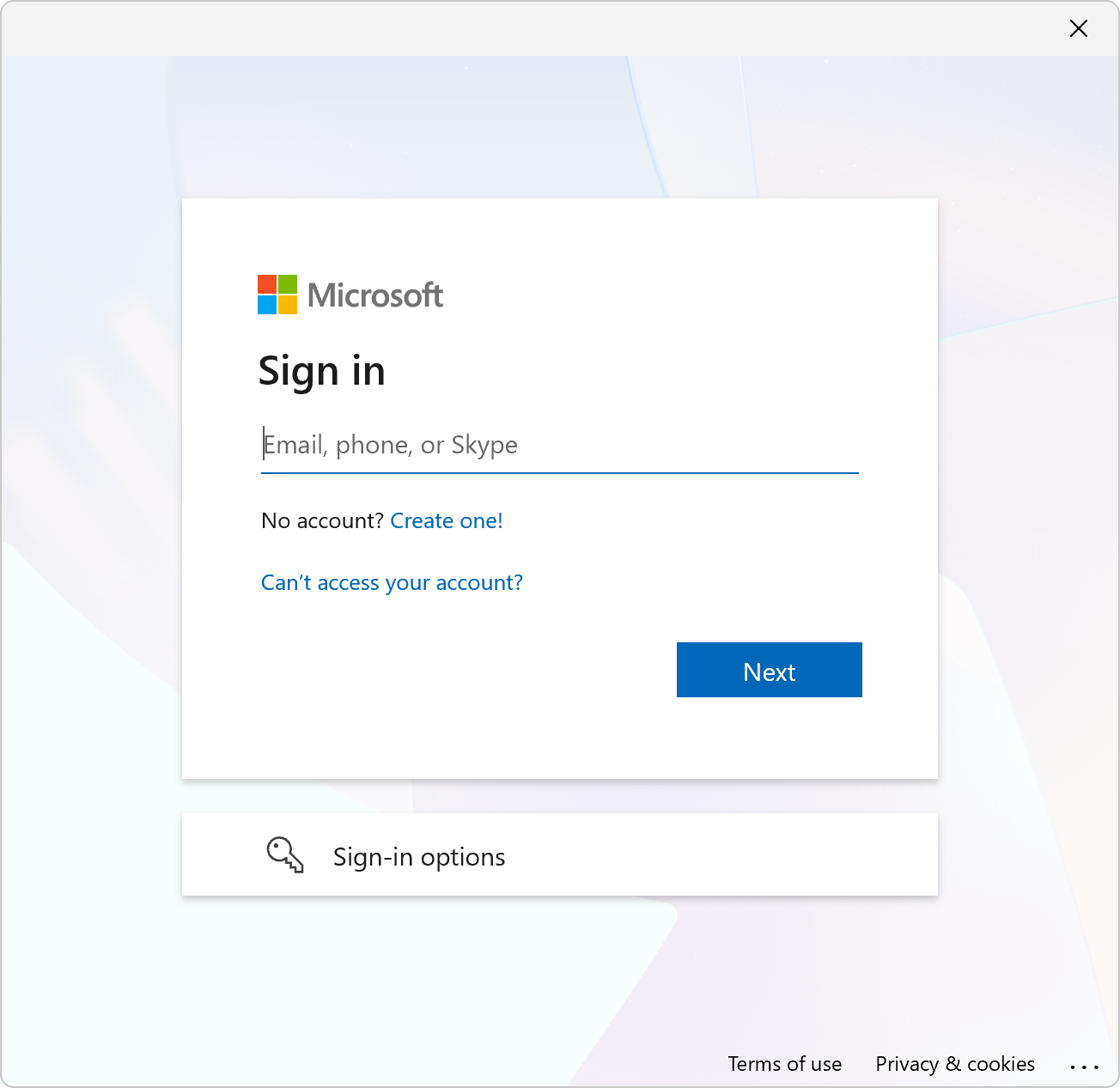
出现提示时,请使用Microsoft工作或学校帐户登录。如果用户的设备已加入Entra ID,或者用户已使用工作或学校帐户登录Windows,软件会自动激活许可证,并跳转到激活成功步骤。
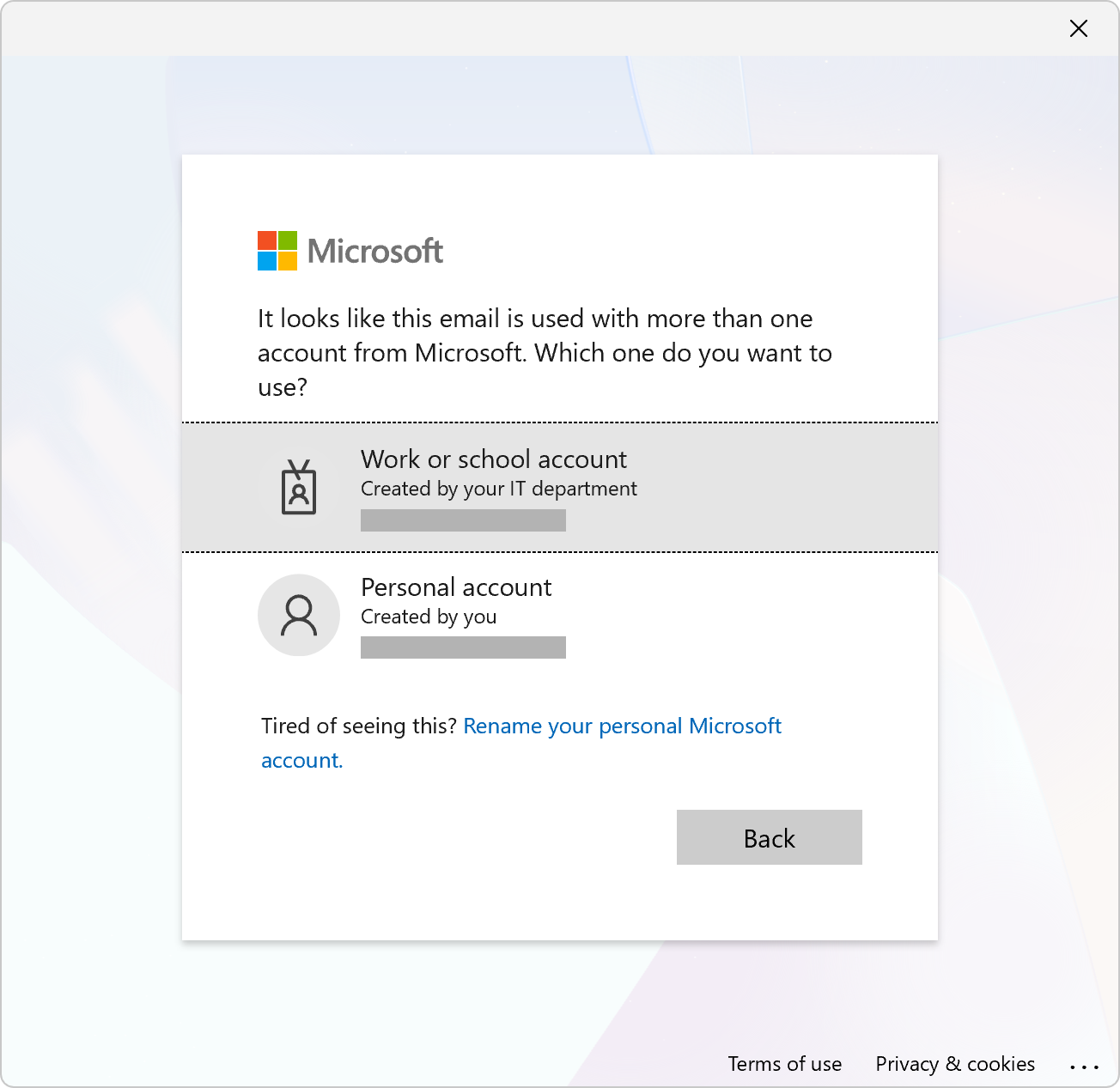
选择工作或学校帐户:
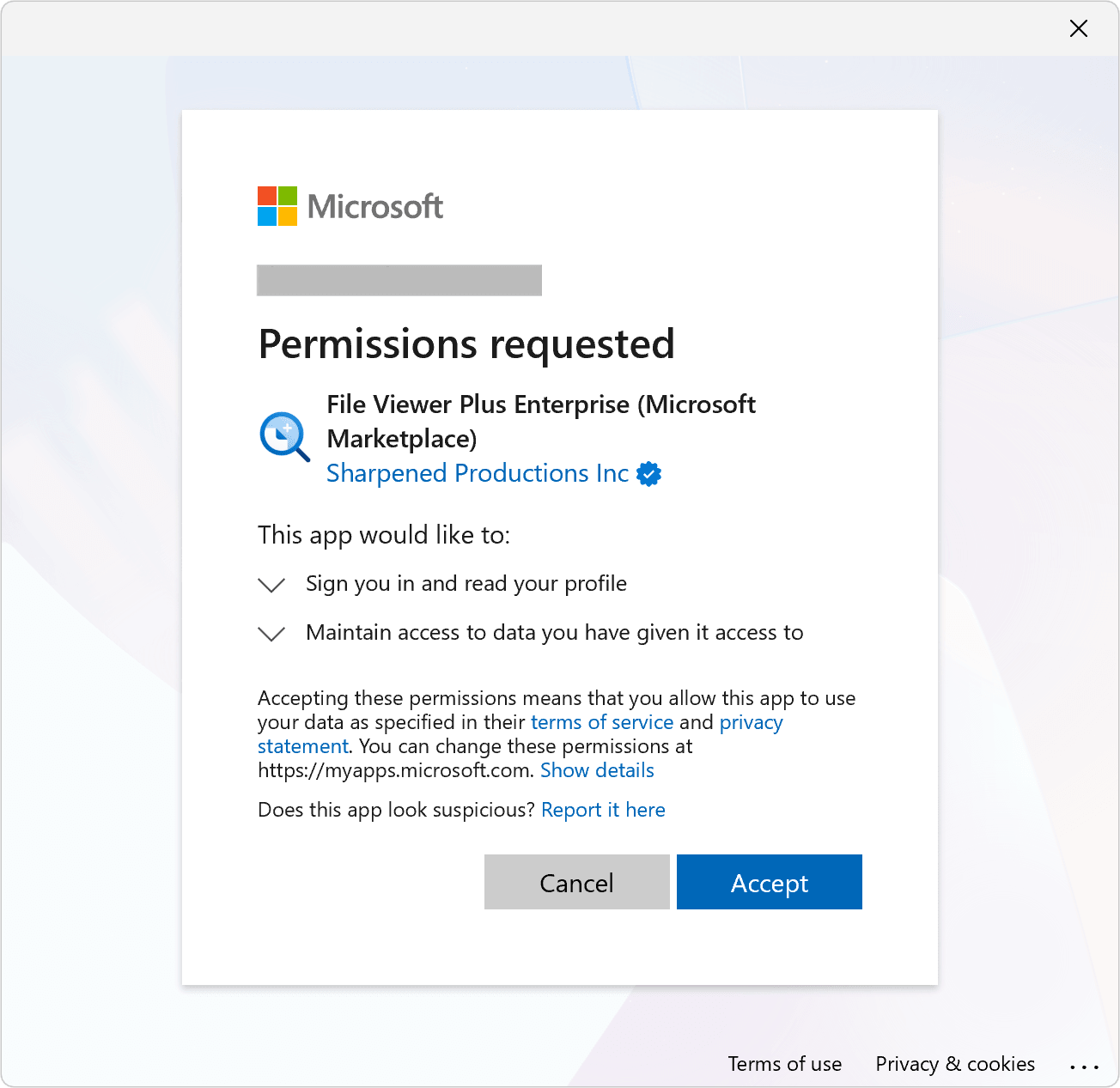
授予必要的权限。管理员还可以选择代表组织同意。
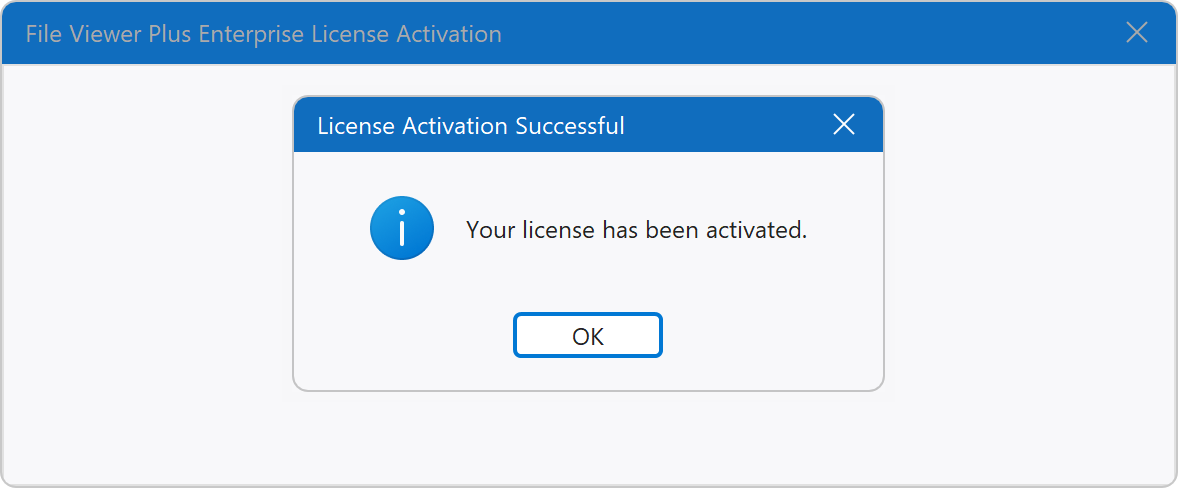
软件确认激活成功:
When activation is complete, a license file is created in the user's "%LOCALAPPDATA%\File Viewer Plus 7\" directory, which typically resolves to C:\Users\[username]\AppData\Local\File Viewer Plus 7\.
退出登录
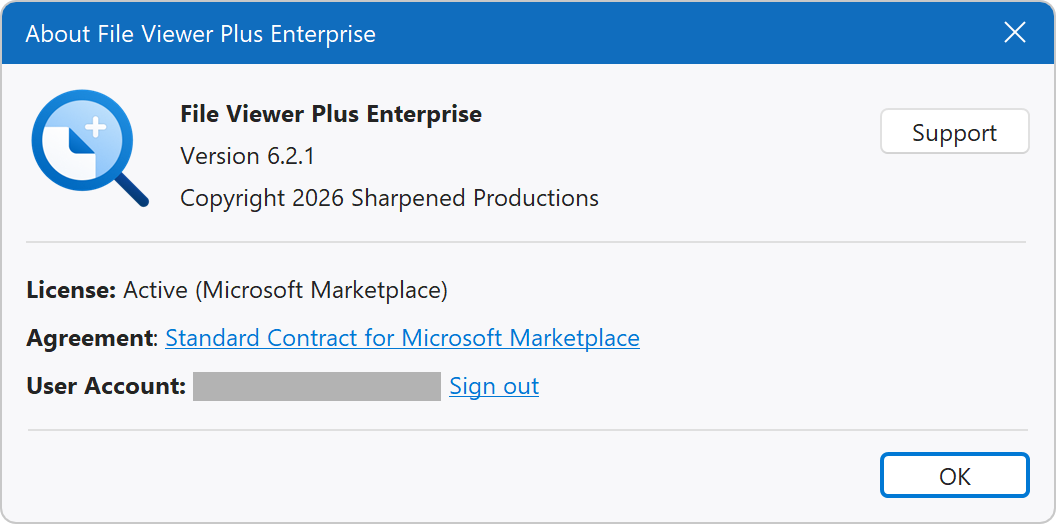
要在计算机上停用许可证,请从帮助菜单中打开关于窗口,然后点击退出登录。
退出登录不会从Microsoft帐户中取消分配许可证。必须通过Microsoft 365管理中心完成许可证取消分配。
需要帮助?
如果您对Microsoft Marketplace许可有疑问,或在激活过程中遇到问题,请联系支持团队。