Scriptimplementatie
Gebruik een van de onderstaande batchscripts om de installatie en licentieactivering in één stap te automatiseren. Er zijn scripts beschikbaar voor zowel Microsoft Marketplace als licenties op basis van een activeringssleutel.
Microsoft Marketplace-scripts
Deze scripts installeren de software en activeren de licentie met behulp van het aangemelde Microsoft-werk- of schoolaccount. Het apparaat moet zijn gekoppeld aan Entra ID of een aangemeld werk- of schoolaccount hebben, en aan de gebruiker moet een File Viewer Plus Enterprise-licentie zijn toegewezen in het Microsoft 365-beheercentrum.
- fvp7-install-activate-marketplace.bat (EXE version)
- fvp7-install-activate-marketplace-msi.bat (MSI version)
Bewerk voordat u het script uitvoert de parameters installer_path en install_dir:
:: NOTE: You must run this script with admin privilege in order for the installer to run silently without displaying a Windows UAC permissions prompt.
:: NOTE: You must set the variables below before executing the script:
SET installer_path=C:\Users\Public\fvp_setup_7.0.0.10ent.exe
SET install_dir=C:\Program Files (x86)\File Viewer Plus Enterprise
Scripts voor activeringssleutels
- fvp7-install-activate-online.bat (EXE version)
- fvp7-install-activate-offline.bat (EXE version)
- fvp7-install-activate-online-msi.bat (MSI version)
- fvp7-install-activate-offline-msi.bat (MSI version)
Bewerk voordat u het script uitvoert de parameters installer_path, install_dir, activation_key en enterprise_lic_path (enterprise_lic_path is alleen nodig voor offlineactivering):
:: NOTE: You must run these script with admin privilege for the installer to run silently without displaying a Windows UAC permissions prompt.
:: NOTE: You must set the variables below before executing the script:
SET installer_path=C:\Users\Public\fvp_setup_7.0.0.10ent.exe
SET install_dir=C:\Program Files (x86)\File Viewer Plus Enterprise
SET activation_key=XXXXX-XXXXX-XXXXX-XXXXX-XXXXX
SET enterprise_lic_path=C:\Users\Public\fvp7-enterprise.lic
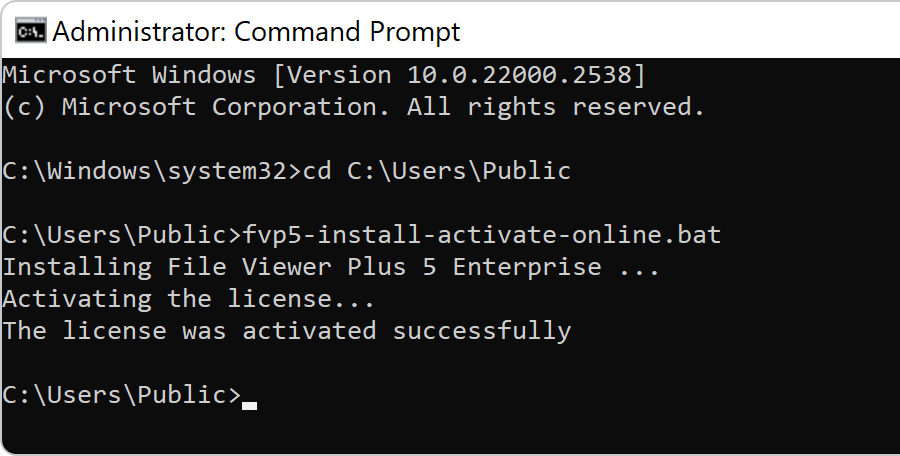
Als het script succesvol is uitgevoerd, ziet u de volgende uitvoer:
Versions 5 and 6 (older versions)
Use the following scripts to deploy versions 5 and 6.
- fvp6-install-activate-marketplace.bat (EXE-versie)
- fvp6-install-activate-marketplace-msi.bat (MSI-versie)
- fvp6-install-activate-online.bat (EXE-versie)
- fvp6-install-activate-offline.bat (EXE-versie)
- fvp6-install-activate-online-msi.bat (MSI-versie)
- fvp6-install-activate-offline-msi.bat (MSI-versie)
- fvp5-install-activate-online.bat (EXE-versie)
- fvp5-install-activate-offline.bat (EXE-versie)
- fvp5-install-activate-online-msi.bat (MSI-versie)
- fvp5-install-activate-offline-msi.bat (MSI-versie)