License Activation with Microsoft Marketplace
If you purchase File Viewer Plus Enterprise through the Microsoft Marketplace, your licenses are managed through Microsoft 365 admin center. No activation key is required — each user activates by signing in with their Microsoft account. For key-based activation, see the Activation Key page.
Step 1: Assign Licenses in Microsoft 365 admin center
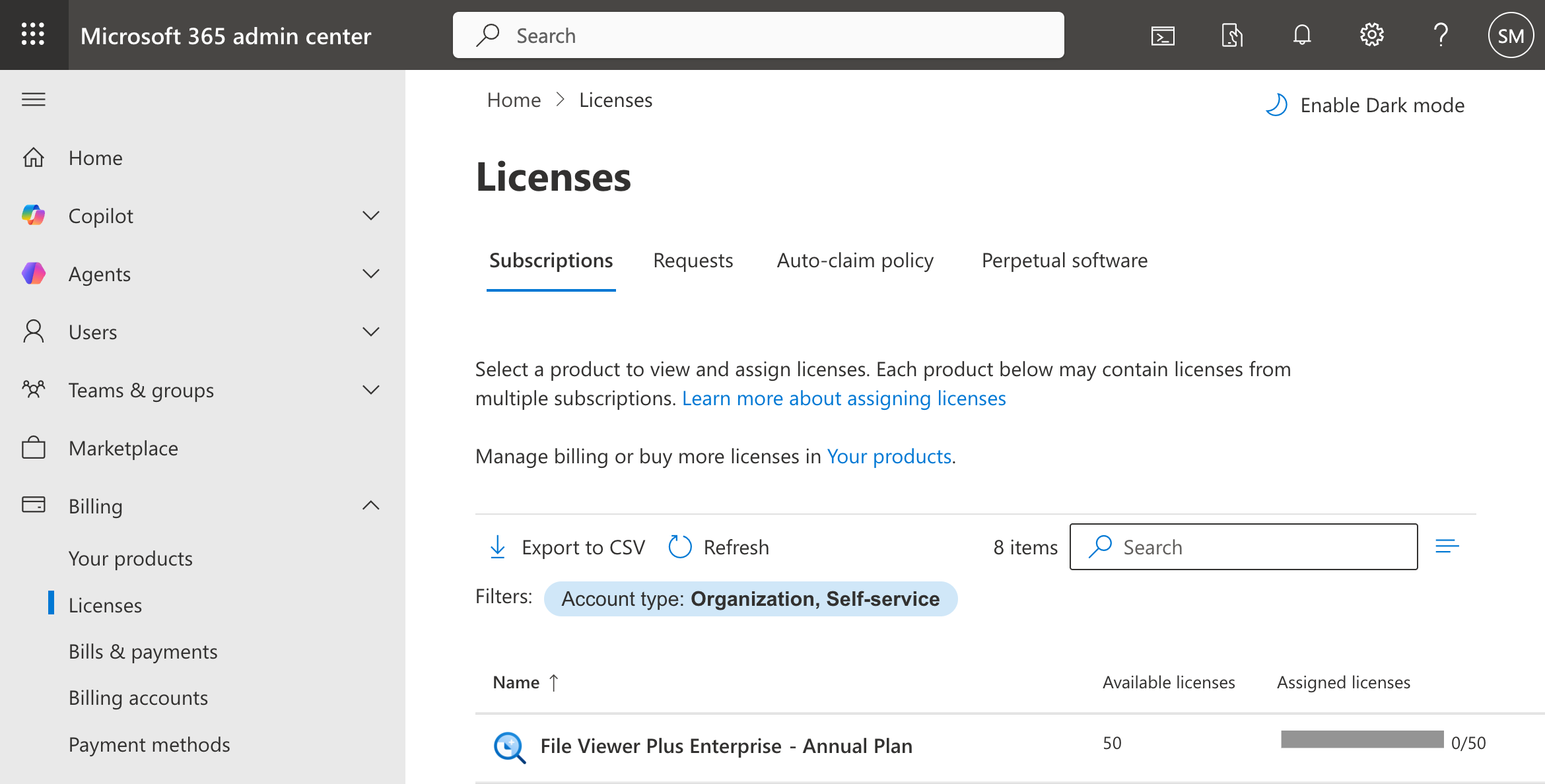
Before users can activate the software, an administrator must assign a license to each user through the Microsoft 365 admin center. Navigate to Billing > Licenses, select File Viewer Plus Enterprise, and assign licenses to the appropriate users.
Step 2: Activate the Licenses
There are two ways to activate your licenses with the File Viewer Plus Enterprise software: silently through the command line or interactively with the licensing window.
Activate with the Command Line
If the user's device is Entra ID joined or the user is signed in to Windows with a work or school account, the license can be activated silently from the command line. (This method is primarily useful for administrators). "C:\path\to\fvp6.exe" is the path to the main program executable ("C:\Program Files (x86)\File Viewer Plus Enterprise\fvp6.exe" by default):
"C:\path\to\fvp6.exe" /activate-microsoft-marketplace
For return codes, see Microsoft Marketplace Scripts.
Activate with the Licensing Window
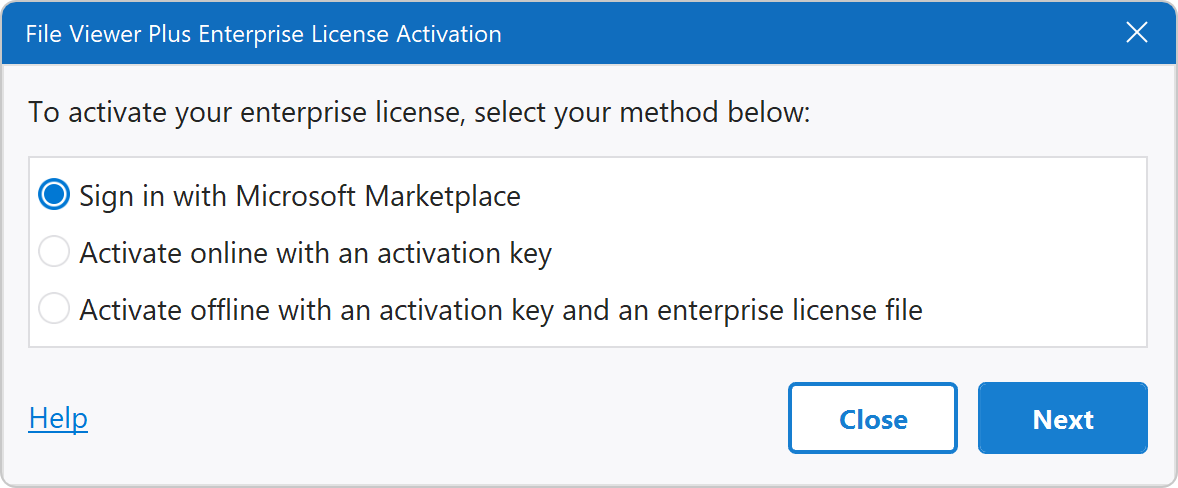
If no license is present on the system when the software starts, the licensing window appears. Click Sign in with Microsoft Marketplace, then sign in with the user's Microsoft work or school account. If the user's device is Entra ID joined, or if the user is already signed in to Windows with a work or school account, the software automatically activates the license.
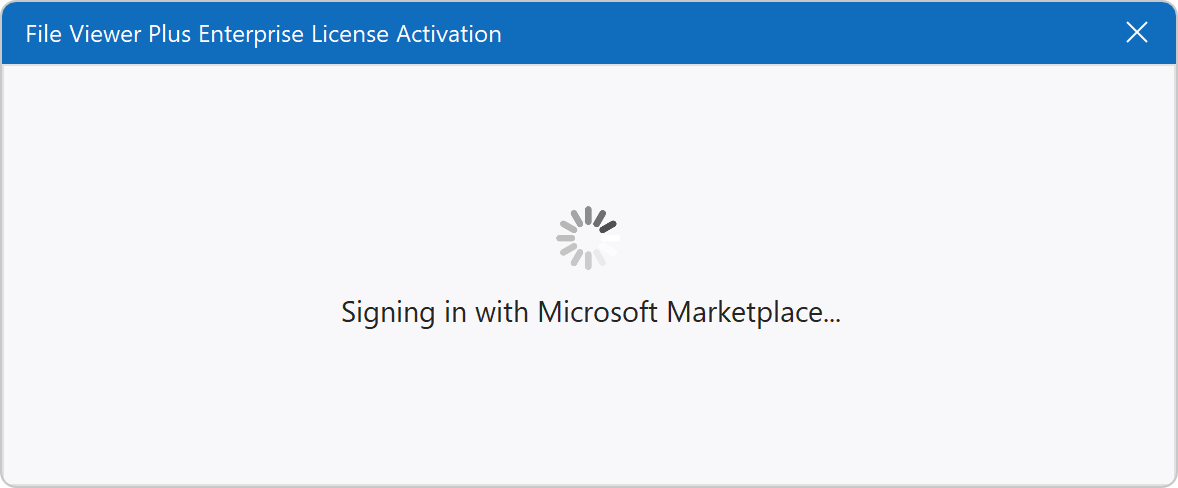
The software begins the sign-in process:
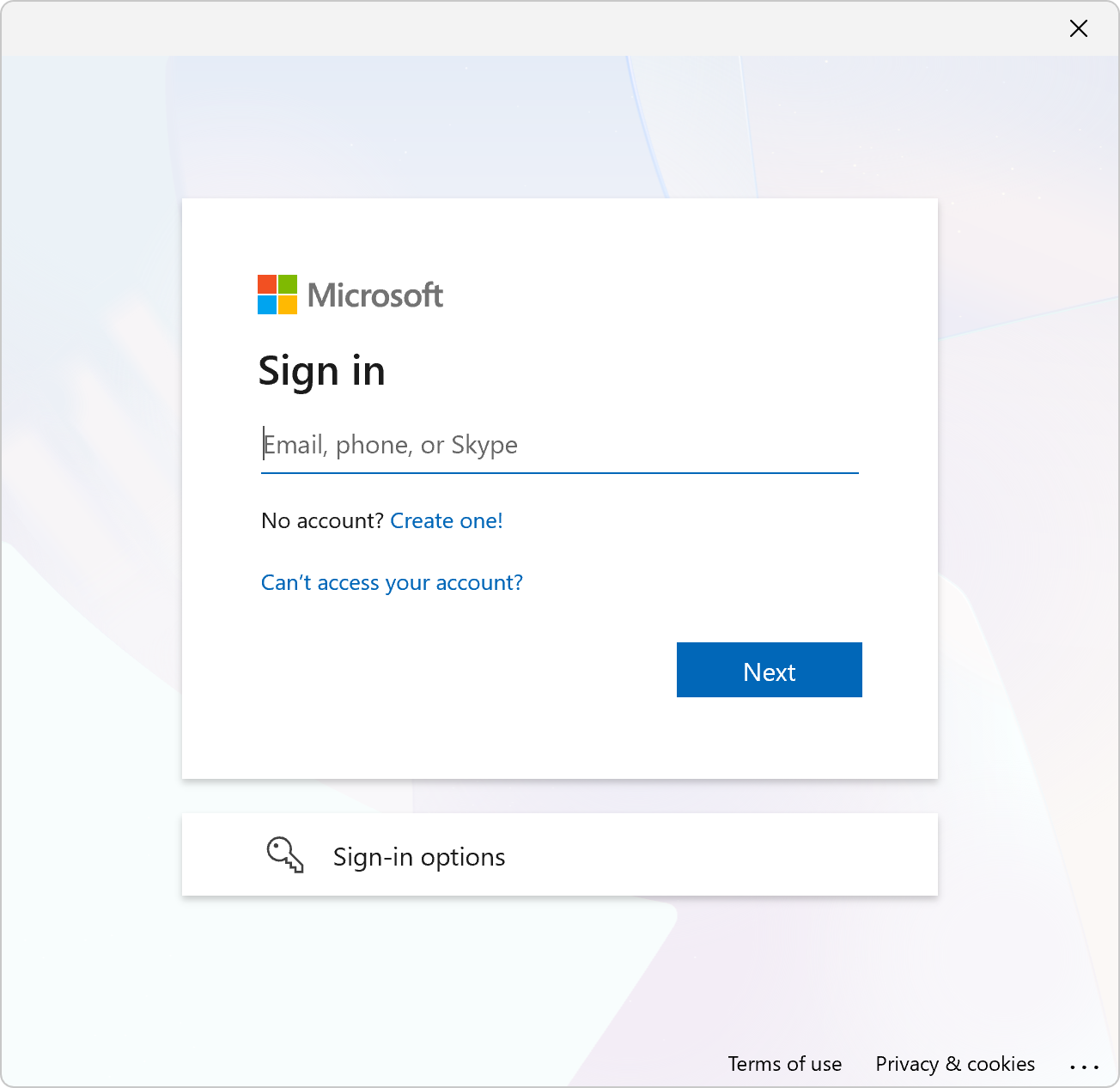
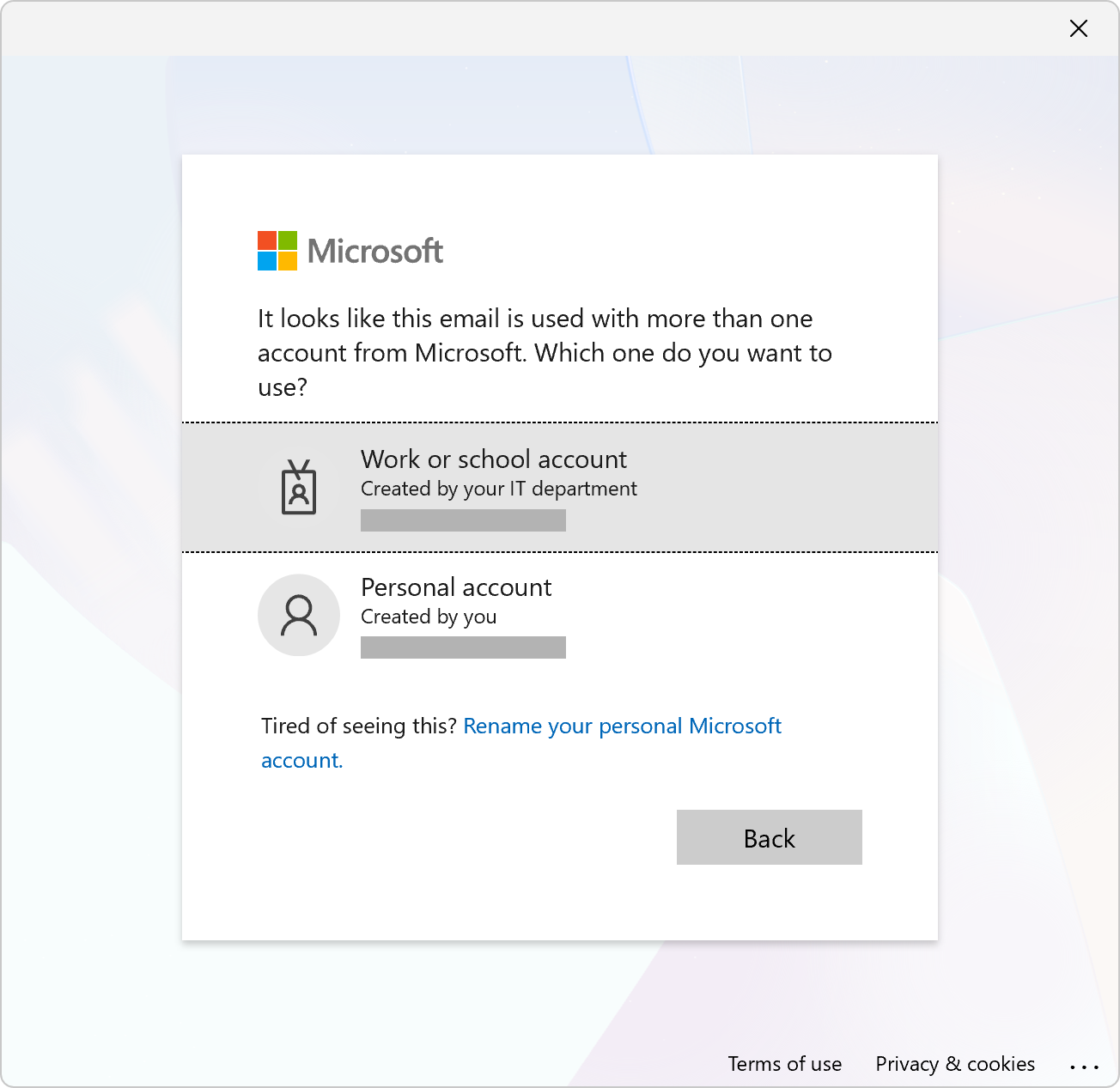
When prompted, sign in with a Microsoft work or school account. If the user's device is Entra ID joined, or if the user is already signed in to Windows with a work or school account, the software automatically activates the license and skips to the successful activation step.
Select the work or school account:
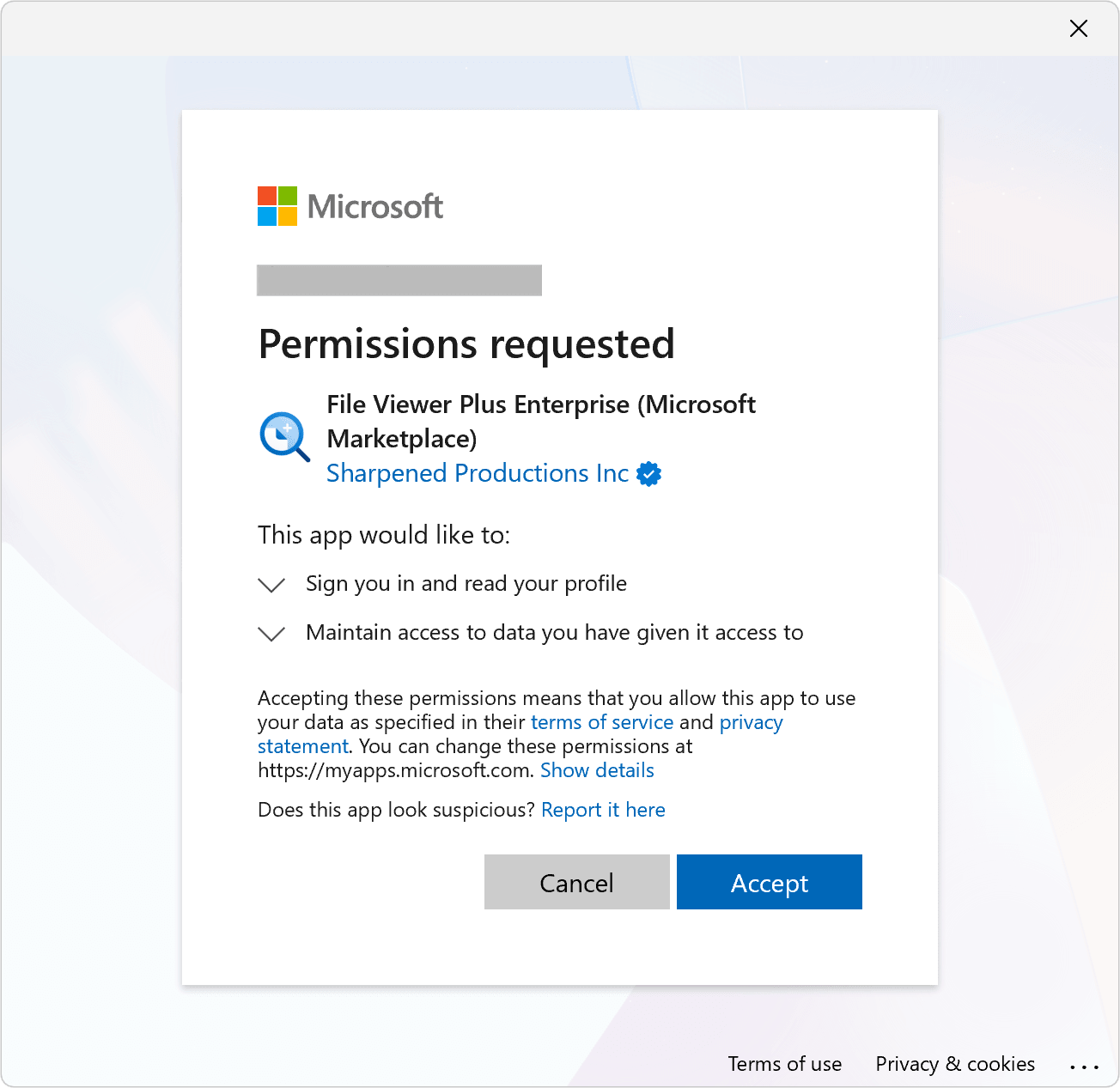
Grant the necessary permissions. Administrators also have the option to consent on behalf of the organization.
The software confirms successful activation:
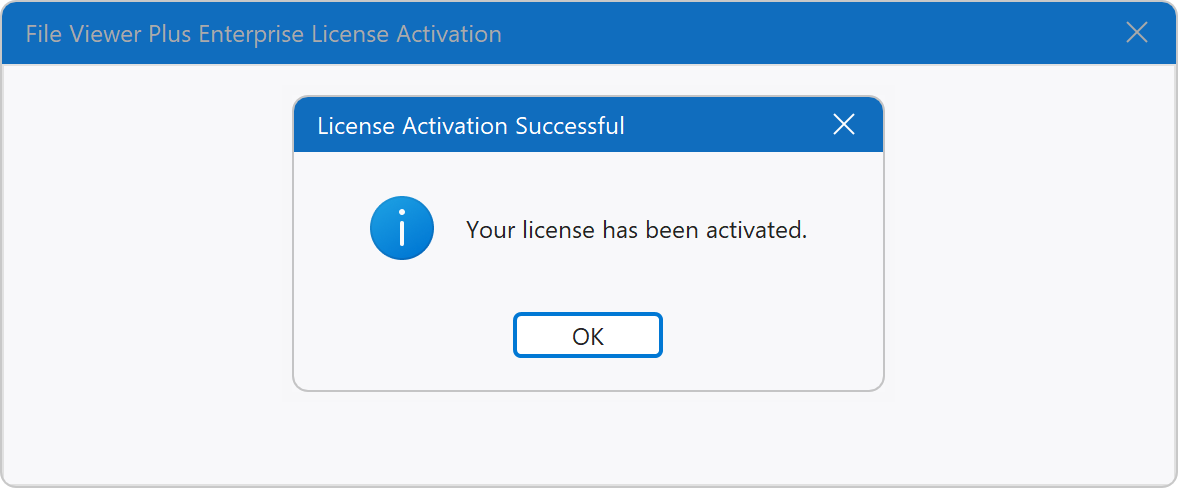
When activation is complete, a license file is created in the user's "%LOCALAPPDATA%\File Viewer Plus 6\" directory, which typically resolves to C:\Users\[username]\AppData\Local\File Viewer Plus 6\.
Sign Out
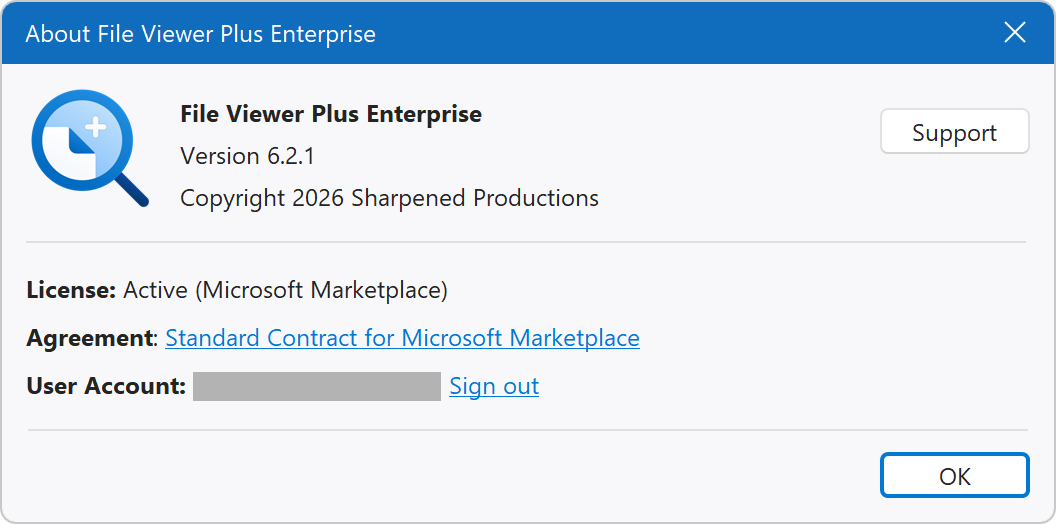
To deactivate the license on the computer, open the About window from the Help menu and click Sign out.
Sign out does not unassign the license from the Microsoft account. Unassigning licenses must be completed through Microsoft 365 admin center.
Need Help?
If you have questions about Microsoft Marketplace licensing or encounter issues during activation, please contact support.